Guide
Schema as code: pull your content model into git and apply it live
You will have canonical schema files and their lock file committed in git, ready to apply to production with a per-model version guard.
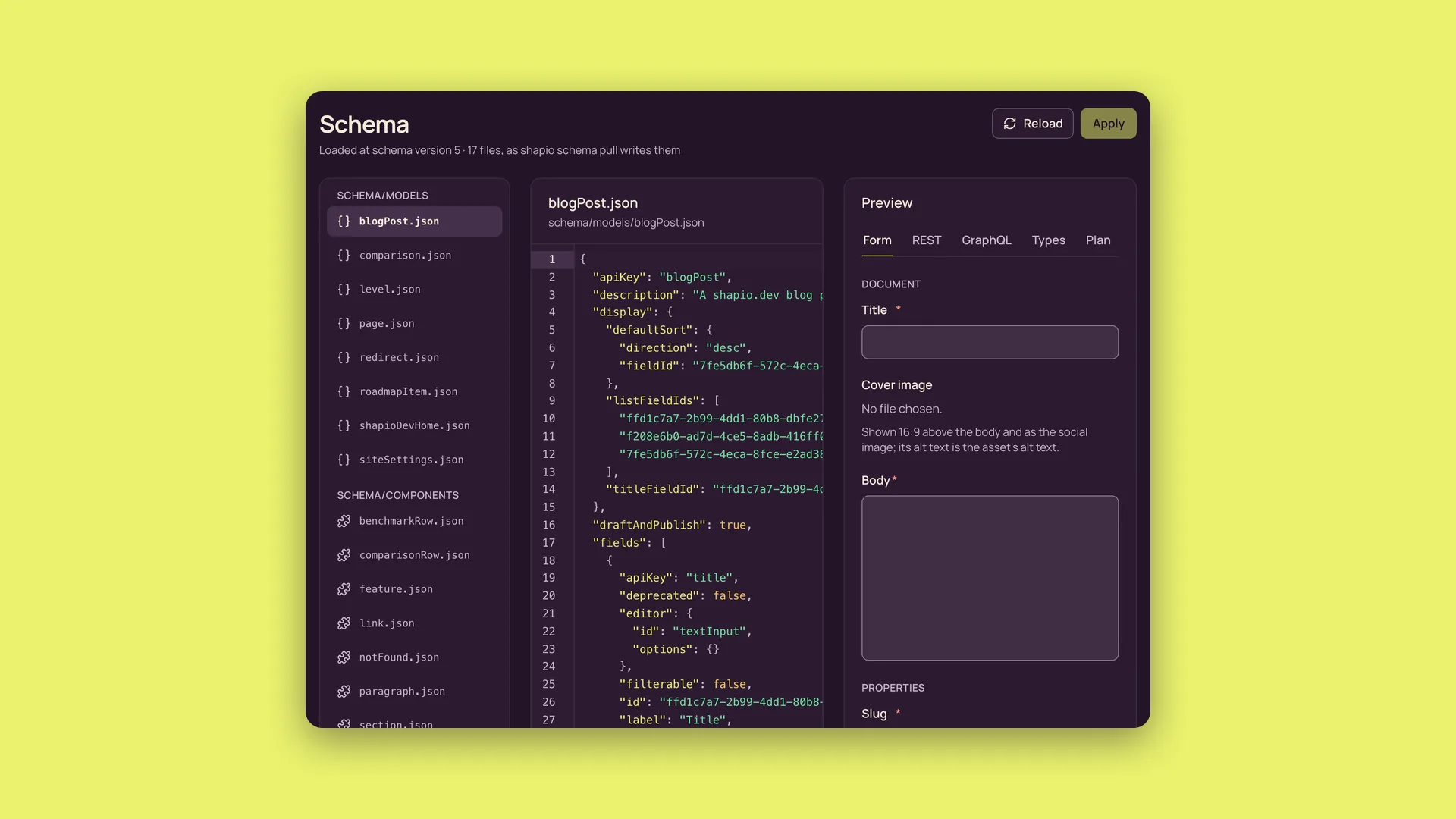
Shapio syncs the models in an instance with JSON files so you can pull, edit and apply your content model. You can review changes in git while every environment, including production, remains editable in the admin by default (a read-only lock exists, and it is opt-in).
Before you start
You need an instance and an admin API token from Settings → API tokens. All shapio schema commands talk to the instance over HTTP, never to its database. Supply --url and --token, or set SHAPIO_URL and SHAPIO_TOKEN. Run the commands in your Shapio project (the one npm install @shapio/cms or create-shapio set up), where npx shapio finds the CLI; anywhere else, use npx -p @shapio/cms shapio.
Choose a local or staging instance for modelling. Schema sync moves models only. To move or back up content, use shapio export and shapio import.
Git mirrors production; it never locks it.
Step 1: Pull the schema
export SHAPIO_URL=https://cms.example.com SHAPIO_TOKEN=shp_…
npx shapio schema pull
Pull writes one canonical JSON file per model and component, with sorted keys, stable IDs and every default spelled out. It also writes .shapio/schema-lock.json, which records each definition's version, hash and site, so commit both the schema files and the lock file.
Pulled 8 definition(s) of site "default" at schema version 12 into schemaStep 2: Check the files and site
schema/
  models/                 shared with all sites
  components/
  sites/
    blog/models/          the blog site's own
    shop/models/          the shop site's own
.shapio/schema-lock.json  every definition's version, hash and site, and the sites the tree covers
Shared definitions go in schema/models/<apiKey>.json and schema/components/<apiKey>.json, while a site's own definitions go in schema/sites/<siteKey>/models/ and schema/sites/<siteKey>/components/. Commands work on one site's view: --site <key> or SHAPIO_SITE selects it, otherwise they use the token's site, then the primary site.
Step 3: Edit and review in git
Edit models in your local or staging admin. In the builder, Review in a change set queues the edit and Ship now ships it at once. Then pull, commit and open a pull request, or edit the JSON files directly. A new file may omit IDs: the instance assigns them on apply and rewrites the file in canonical form.
Step 4: Preview and apply to production
npx shapio schema diff     # what apply would do; changes nothing
npx shapio schema apply
With SHAPIO_URL and SHAPIO_TOKEN pointing to production, diff previews the changes and apply runs the same change planner as the admin, with checks, background index builds and atomic activation, without a restart. Apply waits for activation, then updates the lock file and applied files; --no-wait returns at once, while --wait-timeout <seconds> changes the default 600-second wait.
model article: update
    + field subtitle
Applied 1 definition(s) at schema version 13.
Step 5: Choose how schema and content ship
CLI apply activates each changed definition directly and does not create a change set. To ship schema and content together, use the admin instead. Develop → Schema saves edited files as drafts in a change set, after the same three-way check, and shipping that set publishes the schema and its content items as one snapshot. In the builder, Ship now ships a single edit as a one-item change set.
Check it worked
Run npx shapio schema diff again: it reports nothing to apply. Commit the updated lock file.
How apply decides
Apply compares the base in the lock file, your file and the target's active definition for each model. If your file is unchanged, it skips the model and keeps live changes made since your pull. If only your file changed, it applies with the target's current version as a guard. If both changed, it refuses and shows both sides. A file identical to the target is already applied and skipped.
The reverse workflow is valid too: edit production, then pull and reconcile. For automatic write-back, add a GitHub connection under Publishing → Deployments. After schema changes, it commits the canonical files and lock file, or opens a pull request from shapio/schema-sync.
Check Develop → Snapshots for the schema version recorded with a snapshot. Metadata-only changes do not take a snapshot; conversions of stored values do. Older snapshots use the current schema, and restoring content does not roll back the schema.
When it goes wrong
A conflict refuses the whole apply and writes nothing. The refusal looks like this:
SCHEMA_SYNC_CONFLICT: The target schema changed since your last pull for some definitions you also changed. Pull, reconcile and apply again.Commit your files, then run:
npx shapio schema pull --forceThis overwrites files with the target's definitions and records the new base. Use git diff to bring your changes back on top, commit and apply again. Pull also refuses unapplied local edits unless you use --force. After upgrading Shapio, pull again: a new version can add default properties to definitions, which changes their hashes.
Breaking changes need --allow-breaking; destructive conversions need --allow-destructive. Deleting a file does nothing on the target without --prune, which still refuses deletion if the target definition changed.
For several sites, LOCK_SITE_MISMATCH means you must pull the selected site first. SCOPE_MISMATCH means the file's folder disagrees with the instance: pull its layout. Changed shared definitions require schema permission on every site; FORBIDDEN_SCOPE lists refused definitions and nothing applies. Check that the selected site's tree and shared-definition permissions match the target before applying again.