Announcement
A product is not a blog post
Shapio 0.5.5 lets each content type open as a document or as a form, and keeps that choice in the schema with everything else.
A game level made it obvious
Open a game level in Shapio and you got a huge title, two code fields floating in a column, and the rest of its fields tucked into a drawer on the right. Nothing was broken. The page just gave its space to the wrong things.
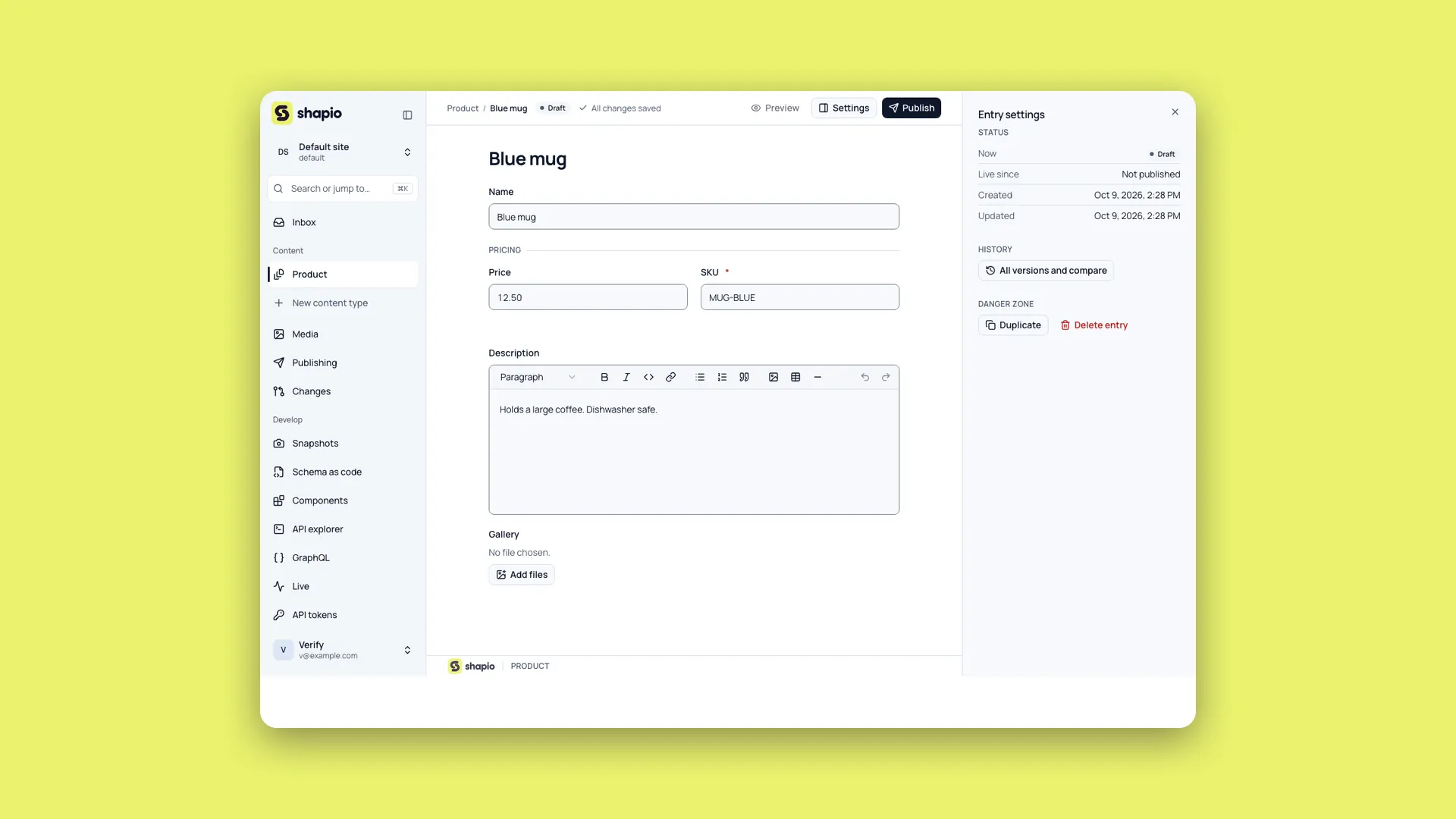
A product had the same problem. Its description belonged in the writing area, but the price, the SKU, and the stock count were properties: chips under the title, rows in the drawer. To fill in one record you moved between three places.
I built Shapio's document layout for articles and pages. You type a big title straight into the page, then write in a canvas of blocks: rich text, dynamic zones, repeatable components, galleries. Every other field is a property, in a strip under the title and in the settings drawer. For an article that is the right shape. For a redirect rule, a job listing, a level, or a config record, it isn't. Those are forms.
The field types don't settle it, either. A product has a rich-text description and is still a form. The person building the content model knows what the thing is, so they should say.
Document or form
Since 0.5.5 each content type has a layout setting, under Display in the model builder: Document or Form.
Document is the default and hasn't changed. Form is a choice you make. Nothing switches on its own: adding a rich-text field doesn't turn a type into a document, and removing one doesn't turn it into a form.
In a form, every field is on the page, top to bottom, the title included. Its value is the page heading, shown as text, and the field itself sits with the others. The settings drawer keeps status, locales, history, and the danger zone, nothing content-related. A pre-flight "Fix" link scrolls to the field on the page.
If you manage the schema you can also flip the layout from any entry's Settings drawer. It ships at once as a metadata change, with Undo in the toast. It is still a decision about the type, not the entry; you just get to make it while looking at one.
Widths, order, groups
Each field has a width: Full, Two thirds, Half, or Third. Rows fill in field order and wrap. Two halves sit side by side, three thirds share a row, and below about 500 pixels of column everything stacks. You reorder fields the way you already did in the builder: drag, arrow keys, or the chevrons. A wireframe next to the setting redraws as you change widths and order.
There is no drag-and-drop grid, on purpose. Order plus width gets you side by side without a second drag surface, collision rules, or a "what happens on a phone" question. Strapi arranges its edit view on a twelve-column grid with widths of 4, 6, 8, or 12; the words map to the same proportions. The difference is how you get there.
A field can go in a named group from its settings, say Pricing. The group renders as a section of the form with a heading, sitting where its first field is. Ungrouped fields keep their place. Groups are renamed or removed under Display.
The layout is schema
This is the part I care about. The layout is display.layout on the model, the width is width on the field, and the groups are display.groups. All of it is schema data: live on save, no restart, and carried by shapio schema pull and schema apply into your repo and on to the next environment. In a change set it shows up as a metadata change, next to the fields it arranges.
That matters for teams. The way a form is laid out is useful information about how people are meant to work with a model, and it should travel with the model instead of being rebuilt by hand on every instance. Strapi's "Configure the view" keeps its layout in the database rather than in the schema files, so moving it between environments takes a plugin.
Two smaller things
The Entries, Structure, and API tabs now sit above every entry, not only above a single type's document. When you notice a record's layout needs work, the builder is one click away.
Team and Network have their own links in the sidebar. Before, the only way to the admins, the roles, and the shared content types was the site switcher, and I kept forgetting that myself.